


ShareNotify notepad

ShareNotify notepad
The official app & game
Distributed by UptoPlay
SCREENSHOTS
DESCRIPTION
Use UptoPlay to play online the game ShareNotify notepad.
Organize your Tasks with ShareNotify, a Functional and Handy to Use Notepad!
ShareNotify is awarded Best Software 2016: https://goo.gl/zyeDAn
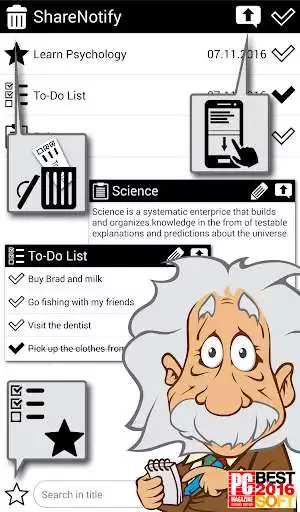
We present an incredibly comfortable and ergonomic notepad with intuitive interface. The application is easily synchronized with Evernote (www.evernote.com site) and you can send notes, to-do lists, and selected text parts over PUSH notifications. Moreover, Smartwatch owners can customize ShareNotify PUSH notifications on the screen!
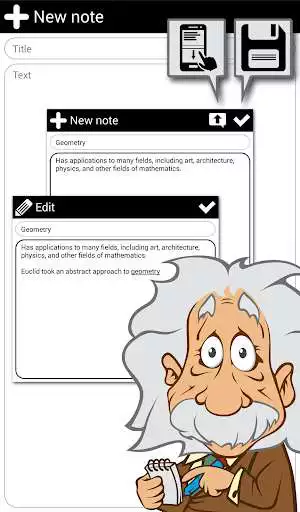
Composing notes, users can set the font size for the notes title and the text, the date format, display modes and others. It is possible to switch on/off mobile data, Wi-Fi and Bluetooth. For your convenience, add widget to the smartphone home screen where it displays any notes or to-do list. Also, you can save the selected text from any application in ShareNotify or send it to the notifications.
The ShareNotify Advantages:
\tUser-friendly search engine supports the title search or a simultaneous title and text notes search by holding down the search button;
\tAutomatic removal of irrelevant, outdated temporary notes (notes with a notepad icon). In the settings you can specify the number of temporary notes stored;
\tWidget location of notes and to-do lists is convenient to use on the home screen;
\tIt is easy to synchronize with Evernote and transfer to-do lists (notes with checkmark icon) and important notes (notes with the star icon) to other devices;
\tSend notes, to-do lists, and any selected text to ShareNotify and status bar, notification center curtain and smartwatches.
The Features of the App:
\tChange note type in the note by clicking the icon located in the upper left corner. At first click on the notepad icon located in the upper left corner the star icon appears (an important note). At second click the checkmark icon appears (a to-do list);
\tTo save any changes in the settings, click the check mark at the top right menu. To return the default settings, the circular arrow button appears on the top right menu;
\tSlide your finger back to the left from the right of the screen to go back to the main screen, the same the back button does;
\tSlide your finger back to the right from the left of the screen or click the star icon at the left bottom of the main screen, you switch to only important notes and to-do lists. To return to the general list, slide your finger back to the left from the right of the screen or click the star icon;
\tComplete tasks in your to-do list. This function is available at the widget on the home screen too;
\tBy default, ShareNotify name is displayed instead of a blank title in the notes and notifications, but you can write any text in the settings;
\tWhen you synchronize with Evernote, ShareNotify first creates an Evernote notebook named ShareNotify, and then sends the important notes and to-do lists there. To get access to the notes from Evernote in ShareNotify application, you need to create them in Evernote named ShareNotify;
\tTo send notes to the PUSH notifications, you need to tap them on the application screen and press the appeared up arrow button, or press the same button in the note. To send any text, you need to highlight it and click Share (action button with the selected text actions). Further, in the drop-down menu select ShareNotify icon. Notes are stored in the notifications until they are not deleted manually. In notifications number of notes is not limited.
How to Setup Notification Settings on your Smartwatches:
\tMust be disabled in application settings: "Delete notifications only from notes"
\tHead to the settings menu on your device and manually activate reception of ShareNotify notifications;
\tDownload and install the needed software. For example:
- BlueWatcher application for CASIO: https://goo.gl/xy0sK6
- Nativecation application for Pebble: https://goo.gl/CcqquR
Enjoy your App!
Enjoy with UptoPlay the online game ShareNotify notepad.
Page navigation: