


Project Tracking

Project Tracking
The official app & game
Distributed by UptoPlay
SCREENSHOTS
DESCRIPTION
Play this online game named Project Tracking.
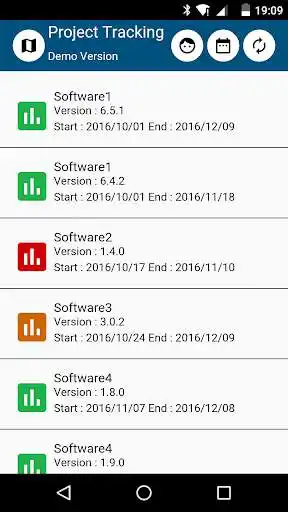
Project Tracking is an application for publishing Software Development Indicators.Inspired by scrum method.
With this application you can communicate to other Project Actors (Client, Team, Direction) :
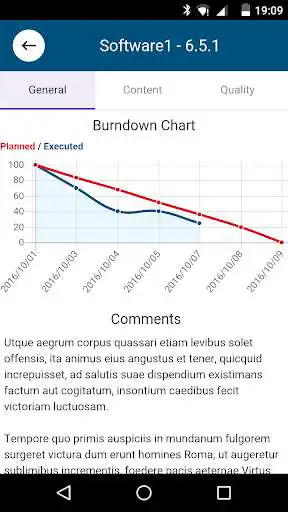
- Release Burndown
- Release Comments
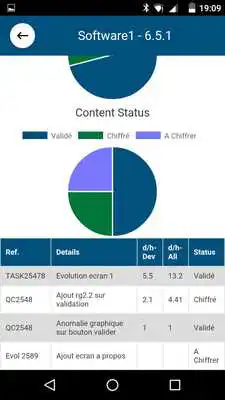
- Release Content
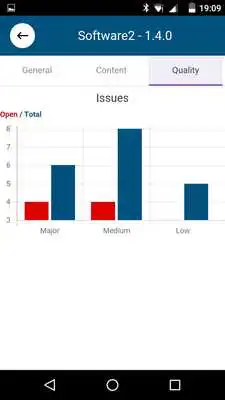
- Release Quality
- Release Versions / Dates
- Team Members
- Calendar View
Managing The Data :
All the data are simply manage into a Google Spreadsheet : https://docs.google.com/spreadsheets/u/0/
You have to respect Google policies about usage of Google Sheet
By default Project Tracking is configure to use the reference Spreadsheet.
You can publish your own data with a personnal Spreadsheet.
1 / Copy the model spreadsheet publishing at : https://docs.google.com/spreadsheets/d/1quxG3rmPGlPUtyraANX8LVOc32EAJS4YOlBYUZLnqa4/edit?usp=sharing
1.1 / Menu File - Make a copy
1.2 / Select your location
2/ Publish your spreadsheet to the web. On your spreadsheet (Copy from the model) :
2.1 / Menu File - Publish to the Web
2.2 / Select Entire document - Web Page, click on Publish Button, confirm
2.3 / Note the publish Key from the Generated URL. Exemple : https://docs.google.com/spreadsheets/d/1lhjpO04iNUclL7enCDs_5RtyR683NHHFnHJWXjOxzq0/pubhtml, Key = 1lhjpO04iNUclL7enCDs_5RtyR683NHHFnHJWXjOxzq0
NB : you can send key by mail on the smartphone for Copy/paste
3 / Configure your app to use you key :
3.1 / On the Project Tracking application, Left side menu : copy your Key on GoogleSheetDataID Input - Click on Save Button
NB : you can customize style but not change column name and tab order
- Release List tab is the general tab. In comment column you can write HTML
- BurnDownChart tab is link to Release List with the id column
- Content tab is link to Release List with the id column
- Team Tab manage your team. In avatar column you can write image src (direct url or base64 data - https://www.base64-image.de/)
NB : If you want to protect data that you publish on Android, you can now encode data with the AES Algorithm. (256-bit)
All column with the header "AES Crypt Option" can save encode data.
You can merge data encode et no encode on the same column.
For activating this option, you just have to set the AES Secret Key on the left side menu. (with the key or your choice)
For encoding data, you just have to use the site : http://perso.numericable.fr/fbeugnet/projectTracking/encrypt.html
DISCLAIMER :
You have to respect Google policies about usage of Google Sheet.
For any customisation or usage without Google Sheet, contact the author.
Updates:
Encode your data with AESIf you want to protect data that you publish on Android, you can now encode data with the AES Algorithm.
All column with the header "AES Crypt Option" can save encode data.
You can merge data encode et no encode on the same column.
For activating this option, you just have to set the AES Secret Key on the left side menu. (with the key or your choice)
For encoding data, you just have to use the site : http://perso.numericable.fr/fbeugnet/projectTracking/encrypt.html
Project Tracking from UptoPlay.net
Page navigation: