


Awake - Keep screen on while charging

Awake
The official app & game
Distributed by UptoPlay
SCREENSHOTS

DESCRIPTION
Use UptoPlay to play online the game Awake - Keep screen on while charging.
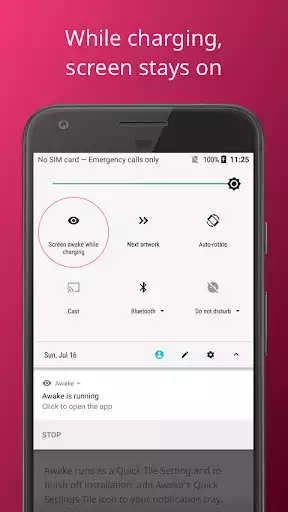
Awake runs as a Quick Tile Setting or by using the app.
Please add Awakes Quick Settings Tile icon to your notification tray.
1: Slide down your Quick Settings Tile and click on edit.
2: Find Awake icon. Long press and drag it to the top.
3: Turn on Awake, by clicking on "Stay awake" icon.
- After adding the quick tile,
- Awake will automatically turn on when you plug your phone it.
- It will automatically turn off when you unplug your phone.
- You can enable or disable this behavior.
- If your phone is charging and you turn on Awake, it will stay awake indefinitely.
- If your phone is not charging, Awake will keep your phones screen awake for 10 minutes.
- You can specify 5, 10, 30 minutes for this timeout value.
Enjoy with UptoPlay the online game Awake - Keep screen on while charging.
ADDITIONAL INFORMATION
Developer: R3BL
Genre: Tools
App version: 2.9
App size: 3.5M
Recent changes: Make sure app works on Android 10
Comments:
This app is amazing. I really don't know about the backlash. This should deserve a higher rating. One complaint would be to make a setting whether to disable automatic launching when my phone is charging. The previous version with manual controls was more of my taste.
These app is useless . You have to manually turn it on to make it work. If you reboot the phone you have to turn it on manually again. There are much better apps without all the complicated steps. UNINSTALLING APP.
Used to work, but on a Note 9 and up to date OS doesn't keep the screen on anymore despite the icon/app being active. Shame as it was a nice and unobtrusive solution.
Nice application, small footprint, no annoying ads, however does not keep Galaxy S9+ screen alive. I am disappointed and will uninstall, sorry. Add: uninstall was clean and simple!
`Works OK when activated on my OnePlus 6T. However the "auto activate when connected to USB" doesn't work. You still have to press "start".`Page navigation: