


Reviewer Quiz Maker
Reviewer Quiz Maker
The official app & game
Distributed by UptoPlay
SCREENSHOTS
DESCRIPTION
Use UptoPlay to play online the game Reviewer Quiz Maker.
Reviewer Quiz Maker is an app which creates mock quizzes.
User will have to play online a template and populate the file accordingly to start the quiz.
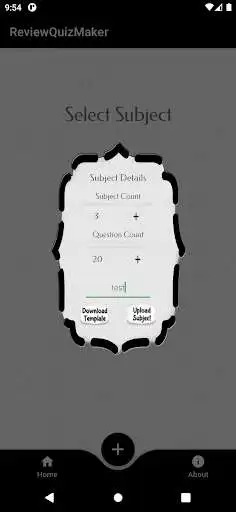
Initial Subject (csv) that can be uploaded is 3.
Initial Quiz Number per Subject is 20.
#, Question, Answer, Option1, Option2, Option3
Sample:
1\tWhat is 1+1\t2\t4\t8\t12\t
2\tWhat is 2+2\t4\t2\t3\t9
*Note that the file to be uploaded is a CSV file thus, the user must
add double quotes for the question if the question contains commas.
Sample
1\t"What is 5+5, divided by 2?" \t5\t10\t15\t20\t
Once populated the user can now upload the csv file using the App and start the review.
The Quiz Reviewer Maker also contains two types of Ads
*A banner and
*A Rewards Ad that
- would add 1 value to the initial subject(3) that can be uploaded,
the maximum number of for the subject to be uploaded is 15.
- would add 5 to the value of the initial quiz number(20),
the maximum number for the quiz number is up to 50
How to use the App
1. To Create Quiz \\n
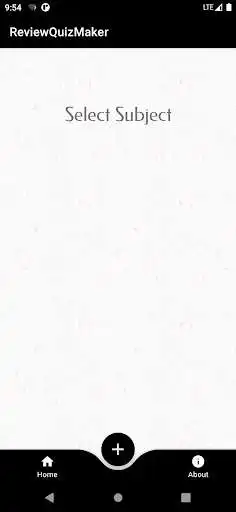
Click "+" from Bottom Menu
Click Download Template to get the csv file format Template.
Note that Permission is required to be able to save and upload a file.
Populate and save the Document. Rename it with
quizmake_
Input sample
#, Question, Answer, Option1, Option2, Option3
1\tWhat is 1+1?\t 2\t3\t4 5
2\tWhat is 2+2? 4\t2\t3\t9
2. Go back to the app Click "+" again.
Enter Subject Name on the text field.
Click Upload Subject and Select the document that you have saved.
Quiz should be able created and can be seen on the Home Screen.
3.\tOnce the file is uploaded, you can immediately Start the Quiz.
Select the Subject and Click Start to Start the Quiz
4. Once the Quiz is completed, there will be a summary of the Score and
options to Retry, Review or Exit.
- Retry; will let the user retry the quiz
- Review; will let the user see the questions answered if its correct or wrong
- Exit; will return the user to the home where quiz subject selection is.
5.\t To Delete or Update the Quiz Subject
Click "..." inline with the Subject Selection
- Click Delete to delete the Subject
- Click Export to save the Subject as csv on your device.
- Click Update to update the Passing Rate or Add Timers on the Quiz
\t *The Quiz has an auto Passing Rate of 90% to update this
\t - Select Passing Rate
- Enter the new passing rate
\t - Click Update
- To turn on Timer
\t - Select Timer
\t - Select Timer in Seconds ON or Off
\t - If On select either Count or Duration
- Duration will turn on a timer on how long you complete the quiz.
- Count will turn on a timer that has a countdown in seconds.
This countdown applies per question, user has to answer the
question within the given time, if not it will be marked as wrong
and will just go to the next question.
Enter Countdown value in seconds (e.g. 15 )
- Enter Update
6.\tClick About :
To know more about the App and how to use it via a Video.
Enjoy with UptoPlay the online game Reviewer Quiz Maker.
ADDITIONAL INFORMATION
Developer: GanJo
Genre: Education
App version: 1.2
App size: 17M
Recent changes: Updated Orientation to portrait only
Page navigation: