


Reconnect Garmin Watch
Reconnect Garmin Watch
The official app & game
Distributed by UptoPlay
SCREENSHOTS
DESCRIPTION
Use UptoPlay to play online the game Reconnect Garmin Watch.
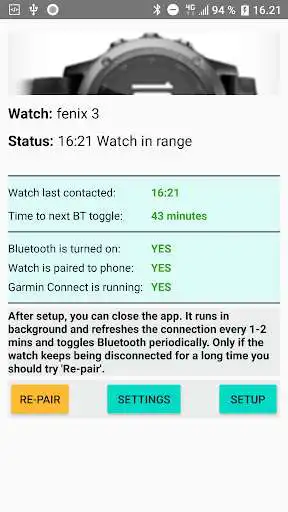
Reconnect Garmin Watch keeps the connection to your watch and reconnects the watch after being away from phone. It runs in the background and battery usage is very low.
The app requires Garmin Connect installed. NOTE: I am NOT from Garmin.
The app works for Fenix 3/5, Forerunner 235/735XT/920, vivoactive3, vivoactive HR, vivosmart HR, vivomove HR, and other models.
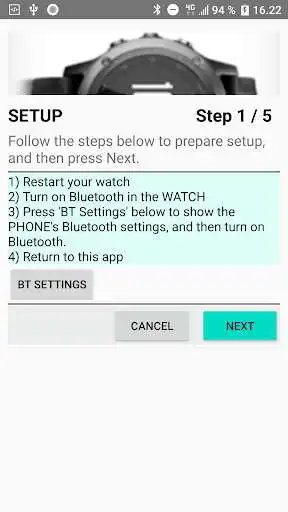
When you run the app the first time, it will start Setup. Please follow the instructions exactly. You should also turn off battery optimisation for the Garmin Connect app.
Huawei phones: Please see text at the bottom.
Troubleshooting:
>> On Galaxy phones, you may have to reboot the phone and force stop the "Bluetooth share" app (go to phone Settings - Applications, show system apps - Bluetooth share - Force Stop).
>> When Vivoactive HR disconnects, sometimes you have to go into Garmin Connect menu - Garmin Devices, and then turn off Bluetooth on the phone. Connect should prompt you to turn on Bluetooth again; do it and wait 10-20 sec, and then the watch should reconnect. (You should also have Location Services turned on in Android settings!)
>> Some Lenovo phones may only work if the watch BLE-ANT firmware is downgraded. You need to Google a file called something like GUP1909.BIN and upload it to the watch from a computer.
>> If the watch shows it's CONNECTED but you don't get any notifications:
* Open Garmin Connect and select Settings - Smart Notifications. Disable and enable one of the notifications, like Incoming Calls. This could make Connect ask for permissions.
* If it keeps asking for permissions even though you gave permission then restart the phone.
-- If it doesn't ask for permissions:
* Go to your phone's Settings - Apps - Connect - Permissions and enable all permissions
Issues with Garmin Connect on some Huawei phones:
You can try the following.
* Turn off Location Services on your phone and then try to add the watch in Garmin Connect
- OR -
* Install and run the app "Bluetooth pair"
- OR -
* Solution from fin:
https://forums.garmin.com/forum/on-the-trail/wrist-worn/fenix-3/1271446-unable-to-pair-fenix-3-with-android-7-0-phone
If you are missing notifications from Huawei phone then check app permissions for Garmin Connect:
Settings > Apps & notifications > Apps > settings (small gear sign on the bottom ) > special access > notification access: Make sure Garmin connect smart notifications is turned on.
Latest status from Garmin on this issue:
https://support.garmin.com/en-US/?faq=3qBFoCgeH428IUUfc0SpZ7&searchType=noProduct
Enjoy with UptoPlay the online game Reconnect Garmin Watch.
ADDITIONAL INFORMATION
Developer: Martin Birk
Genre: Sports
App version: 1.122
App size: 2.1M
Recent changes: NOTE: I am NOT from Garmin
Version 1.122 - 08-Feb-2020
* Error correction
Comments:
My Android One Nokia 7.1 (runs vanilla Android Pie like Pixel) would completely forget my Garmin watch several times a day especially after a recent Connect update. After installing this app it no longer happens. Occasionally the phone BT toggles off but that's a much easier fix than re-pairing and reinstalling my watch several times a day. BT connections to the watch and other devices are otherwise solid. Thanks.
BIG THANK YOU to the developer! I had called Garmin for help soon after I received my Garmin. Blame was being put on my S7 Edge. They had me asking others to use their phone for testing. Yes, Garmin Connect did work on other phones. I was officially due for an upgrade and since I had tested Garmin Connect on my cousins Note9 and all had worked great that was the phone I decided on. Soon after... my new Note9 and Connect DID NOT work! I contacted Support... more test! No! THEN I FOUND THIS APP!
My experience with this app is trash I hate it
Page navigation: