


SONAGI - Customizable Wordbook

SONAGI
The official app & game
Distributed by UptoPlay
SCREENSHOTS

DESCRIPTION
Use UptoPlay to play online the game SONAGI - Customizable Wordbook.
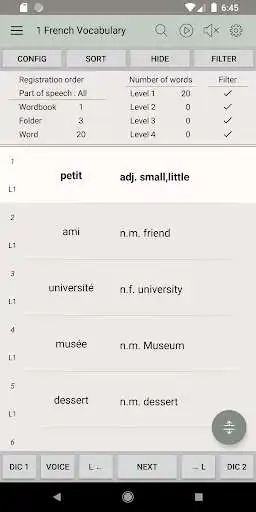
You may upload your wordbook in CSV format and add, edit, and delete individual vocabularies within the app. It allows you to upload your wordbook created by various programs, including Microsoft Excel or Google Spreadsheets. The wordbook to be installed together with the app is a sample piece of data. You may use it to try the app functions and delete it if it is no longer needed.
You may classify vocabularies into four categories, which allows repeated learning in an effective manner. You may change the levels of vocabularies by moving vocabularies individually or changing their levels in bulk. You may also view the words of a specific level(s) using filters.
Suitable for learning all foreign languages
You can listen to the pronunciation of words in all languages of the world supported by Google TTS and the function that allows a user to directly register URLs allows interconnections with any and all online dictionaries available on the Internet.
App remembers where you left off
The app automatically remembers and resumes from the word you left off so there is no need to waste time in finding the word you last left off.
You may remotely turn to the next word using the Bluetooth shutter.
Sync between the list view and the expanded view
Invisible functions and how to use them
Move to the first/last item in the list
You can use this function at Main, Search, Expanded view, File explorer, and Preview.
Double-click/click and hold the toolbar
Create Add, Modify, and Delete buttons
You can use this function at the Wordbook/folder list and word list on the main screen.
the Wordbook/folder list : Click and hold an item,
the main screen : click and hold an item on the right for a word
Clicking and holding an item on the left copies the item.
Edit vocabularies in the expanded view
Press and hold an item you want to edit to create the edit window, edit it, and click the outer area to complete
Page navigation: